
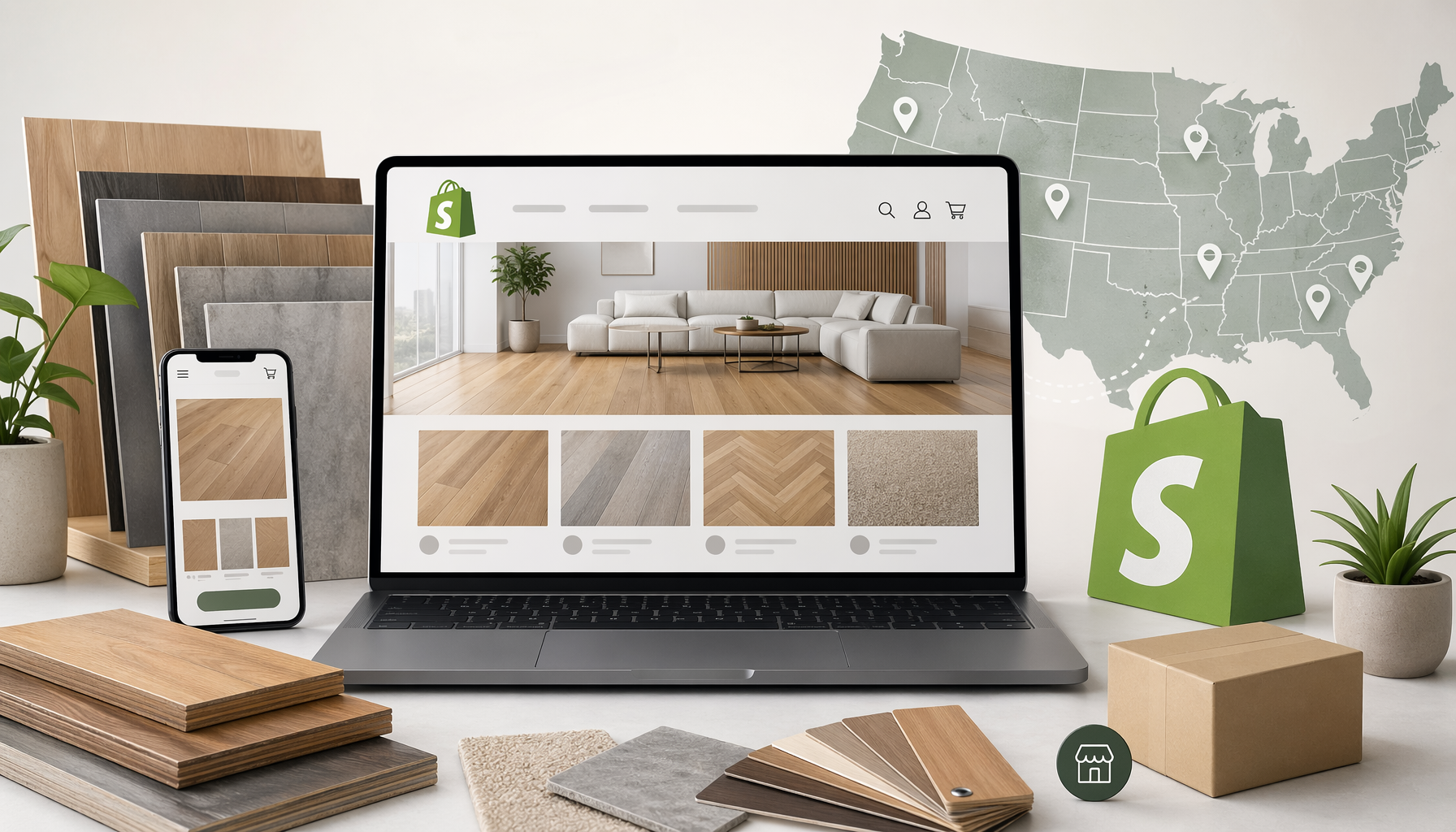
Independent flooring dealers across the US are losing ground to Floors To Go and big-box competitors like Home Depot, not because they carry inferior products, but because their online presence is weak or nonexistent. A 2023 National Flooring Alliance member survey found that dealers with a functioning e-commerce store reported 23% higher annual revenue than comparable dealers without one. That gap is growing, not shrinking.
Shopify is the platform most independent flooring dealers should be on. It has the best ecosystem for small-to-mid-size retail, the widest app coverage, and the most direct path from zero to a working store. But flooring is not a generic product category. You sell by the square foot but price by the box. Your products have installation specs, underlayment requirements, grout joint tolerances, and trim pieces that tie back to a parent product family. None of that works out of the box with a default Shopify setup.
This guide walks you through every decision point: plan selection, product structure, sqft/box pricing, B2B contractor pricing, SEO, catalog automation, and how to migrate from a legacy system. Every recommendation here is direct and backed by a specific reason. Skip sections that do not apply to your situation, but read the product structure section no matter what.
Key Takeaways
- Choose Shopify Basic or Shopify (the $79/month plan) for most dealers; Plus only makes sense at $500K+ in annual online revenue.
- Build separate products per SKU family, not one product per brand, and group them in shared collections for SEO leverage.
- Price by the box in Shopify, display sqft pricing with a metafield, and always show both units side by side.
- Use Shopify Markets or a B2B-capable app for contractor and wholesale pricing rather than a manual discount workaround.
- Automate catalog sync from manufacturers like Shaw, MSI Surfaces, and Mohawk using GoMyFloors so your inventory never goes stale.
- Migrate legacy product data before building your theme so you can validate structure with real SKUs from day one.
Choosing the Right Shopify Plan for a Flooring Dealership
Shopify has four main plans relevant to US dealers: Basic ($39/month), Shopify ($79/month), Advanced ($399/month), and Plus ($2,300+/month). The decision turns on one number: your transaction fee on external payment processors, and whether your revenue justifies paying for a lower rate.
The Break-Even Math on Plan Tiers
If you use Shopify Payments, you pay zero external-processor surcharges on every plan. The credit card processing rates differ (2.9% + 30 cents on Basic vs. 2.6% + 30 cents on Shopify), but there is no additional “transaction fee” on top of those rates. That extra fee (0.5-2%) only applies if you use a third-party processor like Square or Authorize.net instead of Shopify Payments.
Most US flooring dealers should default to Shopify Payments to avoid that surcharge entirely. The upgrade math then comes down to features, not fees. The $79 Shopify plan adds professional reports and five staff accounts, which most stores with a small team genuinely need. Advanced adds custom report builder and third-party shipping rates, useful once you are shipping samples nationally at scale. Plus is a wholesale platform with scripting and dedicated support; it only breaks even if you are processing $500,000 or more in annual online revenue.
What Most Dealers Actually Need
Start on the $79 Shopify plan. You get everything you need for a functional flooring store: unlimited products, discount codes, abandoned cart recovery, and Shopify POS Lite if you want in-store sync. Do not over-invest in plan tier before your store is generating consistent revenue. Upgrade to Advanced when your monthly online revenue exceeds $25,000 and the shipping rate API saves you meaningful time.
Product Structure: The Decision That Affects Everything Else
This is the most consequential setup decision you will make, and most guides get it wrong. The wrong structure makes your SEO weaker, your variants unmanageable, and your catalog automation harder to maintain.
The Right Rule: One Product Per SKU Family
Create one Shopify product for each SKU family, where a “family” means all the colorways or thickness options that share a product name and installation spec. For example, Shaw’s Floorte Pro 7 Series in multiple colors belongs as a single product with each color as a variant. A completely different product line, like Shaw’s Cornerstone hardwood, is a separate product entirely.
Do not create one product per brand (too broad, no SEO signal) and do not create one product per individual SKU (too narrow, fragments search visibility, creates hundreds of orphaned pages). The SKU-family model keeps your URL structure clean (e.g., /products/shaw-floorte-pro-7-series) and concentrates all variant-level traffic onto one indexable product page.
Why This Structure Wins in Search
Google rewards product pages that answer a specific search query with depth. A page for “Shaw Floorte Pro 7 Series” that lists all colors, specs, sqft coverage, and installation requirements will outrank a thin page for a single SKU in nearly every test. Grouping variants on one URL also consolidates backlinks and internal link equity to a single page rather than splitting it across dozens.
Collections and How to Build Them
Use shared collections as your browsing and SEO layer. A product can belong to multiple collections simultaneously in Shopify, so build collections like this:
- By material: Luxury Vinyl Plank, Hardwood, Tile, Laminate, Carpet
- By brand: Shaw, MSI Surfaces, Mohawk, Urban Floor
- By use case: Pet-Friendly Flooring, Waterproof Flooring, Commercial Grade
- By style: Light Wood, Gray Tile, Herringbone Pattern
Each collection page is an SEO asset. A well-optimized “Waterproof Luxury Vinyl Plank” collection page can rank for a mid-funnel query that a single product page never could. Write 150-200 words of unique copy at the top of each major collection describing material properties, suitable rooms, and installation considerations. That copy turns a filtered product grid into a content page that Google can understand and rank.
Sqft/Box Pricing: A Step-by-Step Tutorial
Flooring is sold by the box, but customers think in square feet. If your product page only shows a box price, you will lose sales to any competitor who shows the per-sqft cost alongside it. Here is the exact implementation using Shopify metafields.
Step 1 – Set Your Selling Unit as the Box
In Shopify, each variant has a price field. Set this as the price per box. This is what gets charged at checkout. Do not try to sell in fractional units unless you are using a specialized app, because Shopify’s native inventory system tracks in whole units.
Step 2 – Create a Metafield for Sqft Per Box
Go to Settings > Custom Data > Products > Add Definition. Name it sqft_per_box, set the type to Decimal, and scope it to Products (not variants, unless your colors have different box coverages). For a product like MSI Surfaces’ Taza Oak LVP where each box covers 23.64 sqft, enter 23.64.
Step 3 – Create a Metafield for Price Per Sqft (Calculated)
Add a second metafield definition: price_per_sqft, type Decimal. You will populate this manually as: box price divided by sqft_per_box. For Taza Oak at $58.99 per box and 23.64 sqft per box, that is $2.49 per sqft. Enter 2.49 in the product editor.
If you use GoMyFloors for catalog automation, this calculation is done automatically during the sync from MSI Surfaces or any other supported manufacturer. GoMyFloors extracts the sqft/box figure from the manufacturer’s product page and computes the per-sqft price as part of the import, so you never enter it manually.
Step 4 – Display Both Prices in Your Theme
Edit your product template (or ask your theme developer) to output the metafield values next to the variant price. The display should read something like: $58.99 / box ($2.49 / sqft). This single change reduces “how much per square foot” questions in your chat and increases add-to-cart rates because customers can verify their budget without doing math.
Step 5 – Add a Coverage Calculator
Add a room-size input field that multiplies the customer’s entered square footage by the price_per_sqft value and outputs “You’ll need approximately X boxes.” Several free Shopify apps handle this, including Calculator Builder by Hulk Apps. Place it directly below the price display on the product page, not on a separate page.
Multi-Variant Products: Tiles, Pavers, Copings, and Trim
Tile product families present a unique structural challenge. A single MSI Surfaces tile collection might include field tiles, bullnose trim, coping, mosaics, and stair treads, all on one manufacturer page but with different SKUs, prices, and box coverages. Shopify’s variant system (limited to three options with 100 variant combinations) can handle this if you structure it deliberately.
Option Structure for Tile Families
For a tile family like MSI’s Montesi Grigio, use these three Shopify variant options:
- Piece Type: Field Tile / Bullnose / Mosaic / Coping
- Size: 12×24 / 18×18 / 2×2 Mosaic / etc.
- Finish: Polished / Matte / Honed (if applicable)
Each combination gets its own SKU, price, and sqft_per_box metafield value. This keeps the entire product family on one URL, which is both better for SEO and easier for customers who are specifying a full tiling project and need multiple piece types from the same collection.
GoMyFloors handles this multi-variant extraction automatically for supported manufacturers. The platform identifies all piece types from a single manufacturer page and maps them to Shopify variants during the initial sync, a process that would take hours manually for a large tile collection.
Molding Profiles and Transition Pieces
Transition pieces (T-moldings, reducers, stair nose, end caps) are consistently undersold because dealers create them as afterthought products with no SEO copy and no relationship to the parent flooring product. Fix this with two changes.
First, create moldings as separate products in a “Moldings and Transitions” collection, not as buried variants of the parent flooring product. They have different installation methods, different pricing per linear foot, and different search queries. A customer searching “Shaw Floorte stair nose” needs to find that product directly.
Second, add a “Frequently Bought Together” section on every LVP and hardwood product page that links to the matching molding profile. Shopify does not do this natively, but apps like Frequently Bought Together by Code Black Belt handle it with manual pairing. This one addition typically increases average order value by 8-15% for flooring stores because customers are already planning their installation and will buy the trim if you surface it at the right moment.
Installation Guides and Product Specs
Installation documentation is one of the highest-value content assets a flooring dealer can publish, and almost no independent dealers do it well. A detailed installation guide for a specific product family earns links, reduces customer service calls, and ranks for long-tail queries like “Shaw Floorte Pro installation over radiant heat.”
Where to Put Installation Content
Do not upload installation PDFs as file attachments. PDFs are not crawled as effectively as HTML pages and they exit your site the moment someone opens them. Instead, create a dedicated Shopify Page or Blog Post for each major product family’s installation guide. Use H2 and H3 headers to structure the key topics: subfloor preparation, acclimation requirements, expansion gap specs, click-lock vs. glue-down instructions, and post-installation care.
Link each product page to its matching installation guide using a text link in the product description: “View full installation guide for Shaw Floorte Pro 7 Series.” This internal link passes relevance signals between the product page and the guide, strengthening both in search.
What Specs to Include on Every Product Page
At minimum, every flooring product page needs these fields, either in the product description or in a metafield-powered specs table:
- Wear layer thickness (for LVP: 6 mil, 8 mil, 12 mil, 20 mil)
- Overall thickness in mm
- Width and length per plank or tile
- Sqft per box
- AC rating or hardness rating (Janka for hardwood)
- Waterproof rating (100% waterproof vs. water-resistant)
- Suitable subfloors (concrete, plywood, existing tile)
- Radiant heat compatibility (yes/no/conditional)
- Grout joint recommendation (for tile)
- Warranty: wear, structural, residential, commercial
GoMyFloors extracts these specs directly from manufacturer product pages during catalog sync. For MSI Surfaces and Shaw products, the platform maps spec fields to pre-defined Shopify metafields so they display automatically in your theme’s spec table without any manual data entry.
SEO Setup for a Flooring Store
Flooring SEO is local and transactional. A dealer in Charlotte, NC should be targeting “hardwood flooring Charlotte NC” and “LVP installer Charlotte” before they target broad national terms. Here is the exact setup sequence.
Page Title and Meta Description Templates
Use these templates for your most important page types:
- Product page: [Product Name] – [Material Type] Flooring | [Your Store Name] | Free Samples
- Collection page: [Material Type] Flooring in [City, State] | [Your Store Name]
- Homepage: Flooring Dealer in [City, State] | [Brands Carried] | [Your Store Name]
Keep product page titles under 60 characters. Keep meta descriptions under 160 characters and include a specific call to action: “Order free samples” or “Get a quote online.”
Local SEO Signals
Add your business address, phone number, and service area to your Shopify footer and your About page. Use consistent NAP (Name, Address, Phone) formatting that matches your Google Business Profile exactly, down to how you abbreviate “Street” vs. “St.” Inconsistency across citations suppresses local rankings.
Create a dedicated page for each city or metro you serve if you install or deliver to multiple areas. A page titled “Flooring Installation in Raleigh, NC” with 300 words of genuine local content (neighborhoods served, common subfloor types in older Raleigh homes, local building codes) will outrank a generic service page for anyone searching in that market.
Schema Markup for Product Pages
Add Product schema markup to every product page. Shopify themes like Dawn include basic Product schema, but you should verify it includes price, availability, brand, and aggregateRating if you collect reviews. Use Google’s Rich Results Test to validate your schema after theme setup. Rich results (star ratings in SERPs) lift click-through rate by an average of 30% for product pages, according to Google’s structured data documentation.
B2B and Contractor Pricing
Most flooring dealers have two customer types: retail homeowners and contractors or designers who buy in volume at a discount. Managing both on one Shopify store requires a deliberate setup decision upfront, because retrofitting B2B pricing onto a retail store is painful.
The Three Options
Option 1 – Shopify B2B (Plus only): Shopify’s native B2B feature lets you create price lists for specific companies, set net payment terms, and give wholesale buyers a logged-in experience with their custom pricing. This is the cleanest solution, but it requires Shopify Plus at $2,300+/month. It only makes financial sense if your wholesale volume alone exceeds $500K/year online.
Option 2 – Wholesale pricing app (Basic or Shopify plan): Apps like Wholesale Gorilla or B2B Wholesale Club add contractor-tier pricing on top of your existing retail store. Contractors get a login, see discounted prices, and can place orders without you touching each one manually. Monthly cost is $29-$49 for most of these apps, which is viable for any dealer with more than three active contractor accounts.
Option 3 – GoMyFloors B2B module: If you are using GoMyFloors for catalog management, the platform includes a built-in B2B module that handles contractor and wholesale pricing tiers, quote requests, and net payment terms natively within your Shopify store. This eliminates the need for a separate app and keeps your pricing logic in one system, which matters when manufacturer pricing changes and you need those changes to cascade correctly through both retail and contractor tiers.
Setting Up Contractor Pricing Without Plus
If you go the app route, the setup is straightforward. Install Wholesale Gorilla, create a “Contractor” customer tag in Shopify, and set a discount rule (e.g., 15% off all products for tagged customers). When a contractor applies on your site, review their license number and apply the tag manually or use a form app like Typeform connected to a Shopify webhook. The contractor logs in, sees their 15% discount applied automatically, and places orders without any back-and-forth on pricing.
Migrating From a Legacy System or Spreadsheet
Many dealers arrive at Shopify with product data scattered across a point-of-sale system, a manufacturer’s dealer portal, or a combination of spreadsheets and printed catalogs. Migration done wrong means weeks of cleanup. Done right, it takes one structured sprint.
Step 1 – Audit Your Current Product Data
Export everything you have to a spreadsheet. For each product, document: SKU, product name, material type, brand, box price, sqft per box, variant options (color, size), and whether it is currently active or discontinued. This audit typically reveals duplicate SKUs, inconsistent naming conventions, and a significant number of discontinued products still being promoted. Clean these before import, not after.
Step 2 – Map to Shopify’s CSV Format
Shopify’s product import CSV has specific column headers: Handle, Title, Body (HTML), Vendor, Type, Tags, Published, Option1 Name, Option1 Value, Variant SKU, Variant Price, Variant Inventory Qty. Download the sample CSV from your Shopify admin under Products > Import. Map your existing columns to these headers. Handle any variant rows correctly: the first row for a product includes the full title and description; subsequent variant rows for the same product repeat the Handle but leave the Title blank.
Step 3 – Import and Validate
Import a test batch of 20-30 products first. Check that variants display correctly, prices are accurate, and no description HTML is broken. Fix any mapping errors in your CSV template before running the full import. A full catalog of 500-1,000 products imports in under ten minutes via Shopify’s CSV importer.
Step 4 – Use GoMyFloors for Ongoing Manufacturer Sync
Manual migration gets your legacy products into Shopify. But if you carry products from Shaw, MSI Surfaces, Mohawk, or Urban Floor, those manufacturers update specs, pricing, and availability regularly. GoMyFloors monitors manufacturer websites for changes and syncs updates to your Shopify store automatically. When MSI discontinues a colorway, the platform flags it and removes or archives the variant without you checking their website manually. This is the part of flooring e-commerce that kills stores over time: a static catalog goes stale within weeks, and customers who find discontinued products and try to order them lose trust in your store immediately.
For dealers migrating from a closed-ecosystem platform (like a franchise-mandated website builder), GoMyFloors also provides a full catalog import service that maps your existing product data to the correct Shopify structure before you go live. See how automated catalog management for flooring dealers eliminates the ongoing maintenance burden that kills most independent dealer websites.
Change Monitoring and Discontinued Products
Manufacturers discontinue products, update pricing, and change specs without notifying dealers. This is one of the most underappreciated operational problems in flooring e-commerce. A customer who orders a product that is no longer available, or who receives a product that does not match the spec on your page, is a customer who leaves a negative review and disputes the charge.
Build a monitoring process into your operations from day one. If you are not using GoMyFloors, create a manual calendar reminder to cross-check your top 50 products against each manufacturer’s current website every 30 days. If you are using GoMyFloors, the change monitoring module does this automatically, flagging price changes, spec updates, and discontinuations as actionable alerts in your dashboard.
Email Marketing and Automated Campaigns
Flooring has a longer purchase cycle than most retail categories. A homeowner who visits your store in February for a remodel quote may not buy until May. Email marketing keeps you in front of that prospect during the decision window without any manual follow-up from your team.
Shopify Email (included in all plans) handles basic campaigns: new product announcements, promotional sales, and abandoned cart sequences. For a flooring store, the highest-ROI automated sequences are:
- Sample request follow-up: 3 days after a free sample is ordered, send an email asking if they are ready to measure and offering a quote.
- Abandoned cart recovery: Standard for any store. Shopify sends this automatically. Customize the copy to address the most common flooring objection: “Not sure how much you need? Use our coverage calculator.”
- Post-purchase installation tips: 1-2 days after a purchase, send the installation guide for the specific product purchased. This reduces returns and support calls.
- Seasonal promotions: Flooring sales spike in spring and fall. Schedule a promotional campaign for March and September each year targeting your subscriber list.
GoMyFloors includes pre-built email campaign templates for flooring dealers that connect directly to your product catalog. When you add a new Shaw collection, the platform can automatically generate a product announcement email with the correct specs, images, and pricing pulled from the catalog sync. Learn more about automated email marketing for flooring stores to see how this integrates with your Shopify store.
Shopify Chat and Search Widgets for Flooring
Generic live chat tools (Tidio, Gorgias) handle customer service volume but do not understand flooring-specific questions. A customer asking “will this LVP work over my concrete slab with radiant heat?” needs a product-aware answer, not a generic “we’ll get back to you in 24 hours” response.
GoMyFloors includes an AI-powered chat widget that is trained on your product catalog. It can answer spec questions, recommend products based on room type and subfloor conditions, and escalate complex questions to your team. The search widget uses the same product intelligence, so a customer searching “waterproof flooring for basement” gets results filtered by actual waterproof rating, not just keyword matching. Both widgets install in Shopify as a theme app extension with no coding required.
For dealers evaluating this capability, explore the AI-powered chat and search tools built for flooring stores to see how product-aware search reduces bounce rate and increases sample request conversion.
Start Here This Week: Your Action Checklist
If you are starting from zero, this is the sequence that gets a functional flooring store live in two to three weeks without getting stuck on decisions you can revisit later.
- Day 1: Create your Shopify account on the $79/month plan. Enable Shopify Payments immediately to eliminate external-processor transaction fees.
- Day 2: Install the Dawn theme (free, well-supported, fast). Do not buy a premium theme until you have validated your store with real customers.
- Day 3-4: Audit and export your existing product data. Clean duplicates and discontinued products before any import.
- Day 5-6: Create metafield definitions for sqft_per_box and price_per_sqft. Import your first 20-30 products as a test batch.
- Day 7: Create your core collections (by material and by brand). Write 150+ words of original copy for each major collection page.
- Week 2: Connect GoMyFloors to automate catalog sync for your active manufacturer lines (Shaw, MSI, Mohawk, Urban Floor). Let the platform handle ongoing updates so your catalog stays current.
- Week 2: Set up Google Business Profile if you have not already. Verify your NAP matches your Shopify footer exactly.
- Week 3: Configure Shopify Email abandoned cart sequence and post-purchase installation guide automation. These two sequences take under two hours to set up and run indefinitely.
- Week 3: Submit your sitemap to Google Search Console. Check for crawl errors after 48 hours.
- Ongoing: Review GoMyFloors change monitoring alerts weekly. Update your Google Business Profile with new product photos monthly.
Every one of these steps has a measurable output. If you finish week three and none of these items are complete, identify which specific step is blocked and address that blocker before moving forward. The dealers who succeed with flooring e-commerce are not the ones with the most sophisticated setup – they are the ones who ship a functional store and iterate from there. Explore how GoMyFloors connects to your Shopify store to understand the full automation stack available to independent dealers.
Conclusion
Shopify for flooring dealers works when you build it around the specific ways flooring is bought and sold: sqft-based pricing displayed alongside box prices, SKU-family product structure that concentrates SEO equity, multi-variant tile families on clean URLs, and a B2B layer for contractors built in from the start.
The stores that fail on Shopify fail because they treat flooring as generic retail. They use default product structure, skip metafields, and update their catalog manually until it becomes too burdensome to maintain. Your catalog going stale is not a Shopify problem – it is an operations problem that automation solves.
If you are a US flooring dealer ready to build or rebuild your Shopify store, start with the checklist above this week. Use GoMyFloors to handle the catalog management that would otherwise consume your time. And read through the SEO guide for flooring dealers to understand how to turn your product structure into consistent organic traffic over the next six to twelve months.
